
As a SSCC student you are eligible to receive a free copy of the Microsoft Office 365 Suite. This is a full version of the popular Microsoft Office program that can be installed on up to five of your personal devices.
To get started you will need to log into your SSCC Office 365 student email account from the SSCC MyMail page, by clicking on MyMail Office365 | Login.
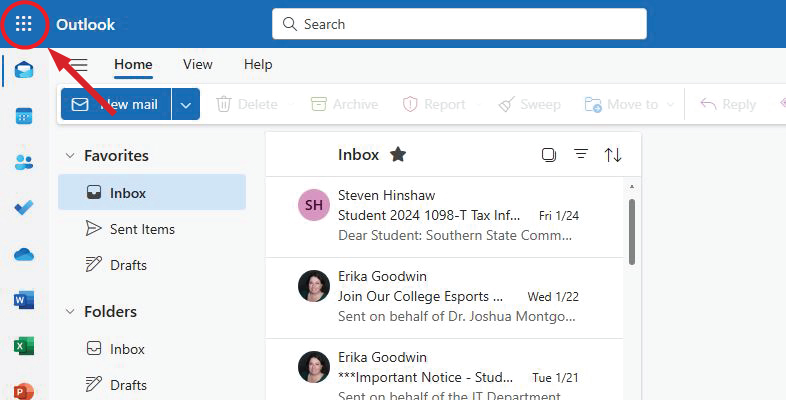
1.) Once logged-in to your SSCC Office 365 account select the App Launcher located in the top left corner of the screen.
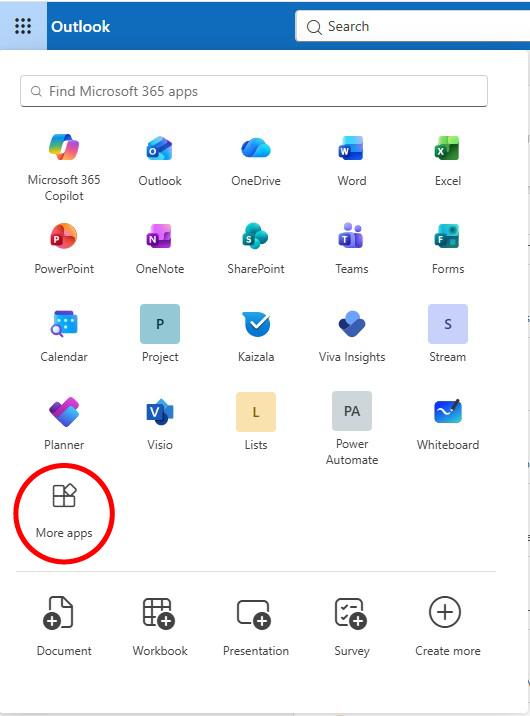
2.) Then, select More Apps from the App Launcher menu.
3.) On this page you will need to select Install apps, then select Microsoft 365 apps from the drop-down.

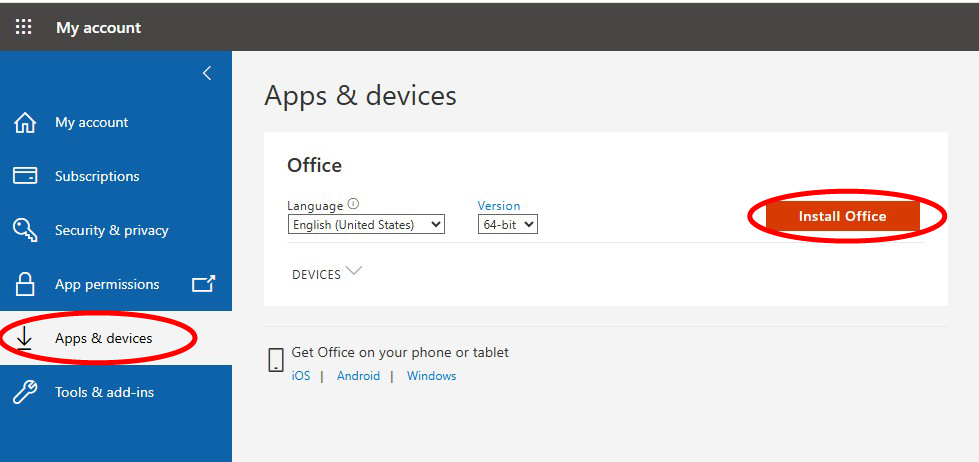
4.) This will open the My Account page. Select Apps & Devices from the left navigation, then click Install Office. This will begin the downloading the installation file.
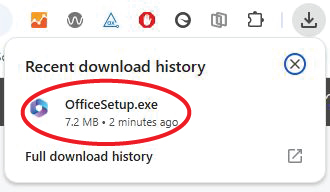
5.) From your downloads folder, double click the OfficeSetup.exe file. This will begin the install.
6.) A pop-up will appear while Installing Office
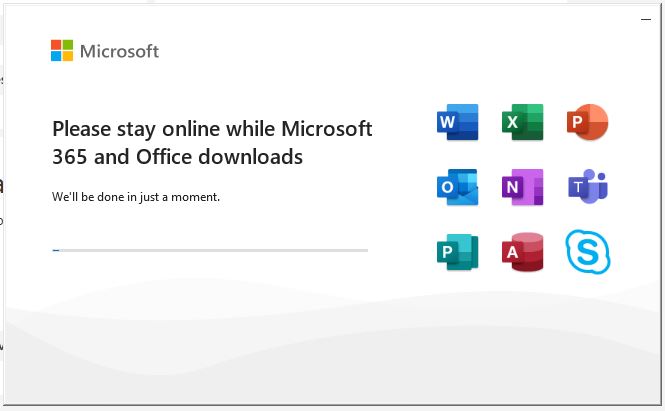
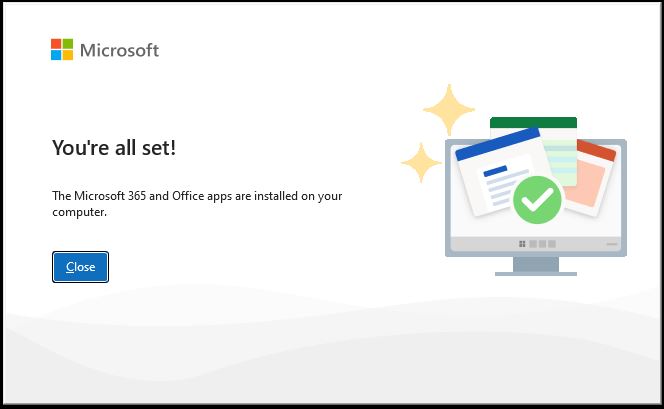
7.) When the software has finished installing another pop-up will appear stating that Office is now installed.
8.) Next you will need to click the Start Menu, and open one of the newly installed Office 365 programs.